Responsive Web Design: A Deep Dive into CSS Media Queries
Mastering Responsive Web Design: A Deep Dive into CSS Media Queries.
Introduction
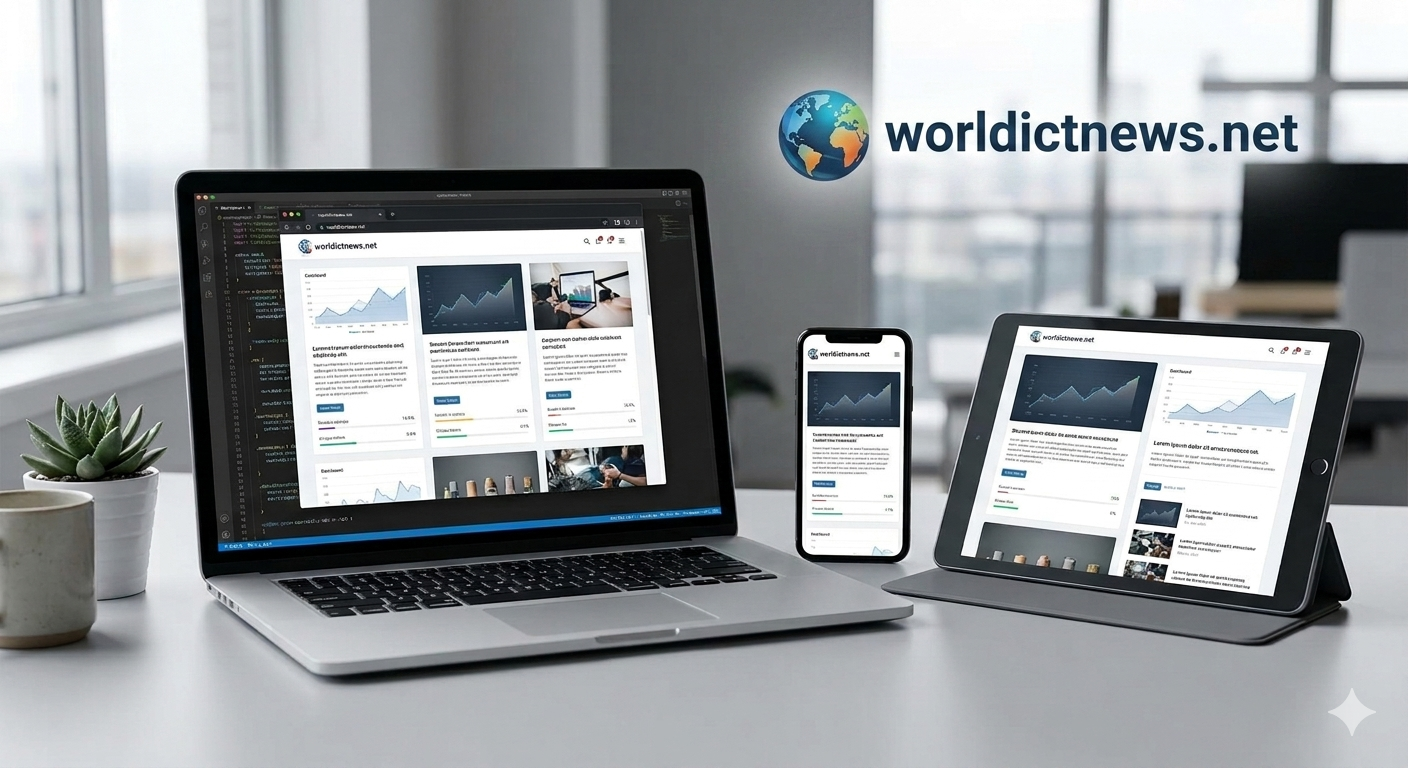
The modern web is accessed from an incredibly diverse ecosystem of hardware. A single website must render flawlessly on a 4-inch smartphone screen, an 11-inch tablet, a 15-inch laptop, and a 4K ultra-wide desktop monitor. In the early days of mobile internet, businesses built separate websites for mobile devices (often hosted on an m.dot subdomain like ://example.com). This approach doubled development time, fragmented search engine optimization (SEO) rankings, and created massive content management headaches.
Responsive Web Design (RWD) solved this dilemma. Coined by Ethan Marcotte in 2010, responsive design is an approach where a website's layout dynamically adapts to the user's viewing environment based on screen size, orientation, and platform.
At the heart of this design philosophy are CSS Media Queries. This comprehensive guide explores the core mechanics of creating fluid, responsive layouts using native CSS techniques, breakdown strategies, mobile-first workflows, and performance optimization rules.
1. The Three Pillars of Responsive Design
Before writing media queries, you must understand the three structural rules that make a layout responsive:
+-------+
| 1. THE VIEWPORT META TAG |
| Initializes layout scaling on mobile screens |
+------+
|
v
+--------+
| 2. FLUID GRID SYSTEMS |
| Elements scale fluidly using % / vw / vh / fr units |
+--------+
|
v
+-------+
| 3. MEDIA QUERIES |
| Applies structural design pivots at precise limits |
+--------+
The Mobile Viewport Meta Tag
By default, mobile browsers try to emulate a desktop screen width (usually around 980 pixels) and scale the webpage down to fit the small screen. This results in microscopic text and unclickable links. To stop this emulation and tell the browser to render the page using the device's actual physical width, you must include this HTML tag inside your document's <head> region:
html
<meta name="viewport" content="width=device-width, initial-scale=1.0">
Use code with caution.
width=device-width: Sets the width of the page to match the screen width of the device.initial-scale=1.0: Sets the initial zoom level when the page first loads.
Fluid Grids and Flexible Images
A responsive layout avoids using fixed pixel layouts (e.g., width: 960px;). Instead, layout structural containers use relative units like percentages (%), viewport width (vw), viewport height (vh), or CSS Grid fraction units (fr).
Similarly, images must be made flexible so they do not bleed outside their parent elements on smaller viewports:
css
img {
max-width: 100%;
height: auto;
}
Use code with caution.
2. Anatomy of a Media Query
A media query consists of an optional media type and zero or more expressions that check for specific media features. If the conditions are true, the enclosed CSS rules are applied to the element.
Syntax Breakdown
css
@media media-type and (media-feature) {
/* Targeted CSS Rules Go Here */
}
Use code with caution.
@media: The CSS rule declaration that initializes the query block.Media Type: Specifies the category of the device. Common values include:
screen: Used for computer screens, smartphones, and tablets (Most common).print: Used for preview screens and print layouts.all: Applies the styles to all media devices.
Media Feature: The conditional expression checking the current state of the browser rendering layer. Common features include
width,min-width,max-width, andorientation.
3. Designing Breakpoints: Mobile-First vs. Desktop-First
A breakpoint is the precise pixel threshold where a website's layout alters significantly via a media query to provide an optimized user experience. There are two opposite philosophical methodologies used to build responsive breakpoints.
Methodology 1: Mobile-First (Highly Recommended)
In a mobile-first workflow, you write your base CSS styles for the smallest screens first without any media queries. You then use progressive enhancement to add layout layers as the screen scales upward using min-width queries.
This approach is highly performant because mobile devices do not have to parse complex desktop layouts, and it forces designers to prioritize essential content.
css
/* Base Styles: Applies to mobile viewports */
.card-container {
display: flex;
flex-direction: column;
}
/* Tablet Layout Layer */
@media screen and (min-width: 768px) {
.card-container {
flex-direction: row;
flex-wrap: wrap;
}
}
/* Desktop Layout Layer */
@media screen and (min-width: 1024px) {
.card-container {
justify-content: space-between;
}
}
Use code with caution.
Methodology 2: Desktop-First
In a desktop-first workflow, the base styles define the full-scale desktop layout. You then use max-width media queries to subtract elements, shrink container grids, or stack navigation columns as the viewport scales downward.
css
/* Base Styles: Standard Desktop Layout */
.sidebar {
width: 300px;
float: left;
}
/* Tablet / Mobile Adjustments */
@media screen and (max-width: 767px) {
.sidebar {
width: 100%;
float: none;
}
}
Use code with caution.
Standard Device Breakpoint Frameworks
While you should ideally place breakpoints based on when your layout naturally breaks, using standard device ranges provides a highly reliable foundation:
Screen Range | Device Category | Common Breakpoint Target |
|---|---|---|
0px – 480px | Smartphones / Small Mobile | Base CSS Layer |
481px – 768px | Tablets (Portrait) / Foldables |
|
769px – 1024px | Tablets (Landscape) / Netbooks |
|
1025px – 1200px | Standard Laptops & Desktops |
|
1201px+ | Large Wide Desktops / 4K Monitors |
|
4. Practical Implementation: A Responsive 3-Card Grid
Let us construct a real-world example: a responsive product showcase grid that displays as a single stacked column on mobile, converts to a two-column grid on tablets, and scales into a clean three-column grid on desktop screens.
HTML Structure
html
<!DOCTYPE html>
<html lang="en">
<head>
<meta charset="UTF-8">
<meta name="viewport" content="width=device-width, initial-scale=1.0">
<title>Responsive Grid Layout</title>
<link rel="stylesheet" href="style.css">
</head>
<body>
<main class="grid-wrapper">
<article class="card">
<div class="card-image bg-blue"></div>
<h2>Standard Analytics</h2>
<p>Monitor your web data metrics in real-time with automatic cloud storage backups.</p>
</article>
<article class="card">
<div class="card-image bg-orange"></div>
<h2>Secure Storage</h2>
<p>Enterprise-grade threat protection layers safeguarding your customer profiles.</p>
</article>
<article class="card">
<div class="card-image bg-purple"></div>
<h2>Automated Reports</h2>
<p>Receive scheduled analytical summaries directly inside your team messaging apps.</p>
</article>
</main>
</body>
</html>
Use code with caution.
CSS Implementation (Mobile-First Workflow)
css
/* =======
1. BASE STYLES: Mobile Viewports (0px - 480px)
====== */
body {
font-family: Arial, sans-serif;
background-color: #f5f6fa;
margin: 0;
padding: 20px;
}
.grid-wrapper {
display: grid;
grid-template-columns: 1fr; /* Single column stack */
gap: 20px;
max-width: 1200px;
margin: 0 auto;
}
.card {
background-color: #ffffff;
border-radius: 8px;
padding: 20px;
box-shadow: 0 4px 6px rgba(0, 0, 0, 0.05);
}
.card-image {
height: 150px;
border-radius: 6px;
margin-bottom: 15px;
}
.bg-blue { background-color: #3498db; }
.bg-orange { background-color: #e67e22; }
.bg-purple { background-color: #9b59b6; }
/* =====
2. TABLET UPGRADES: Viewports Larger Than 480px
===== */
@media screen and (min-width: 481px) {
body {
padding: 40px;
}
.grid-wrapper {
grid-template-columns: repeat(2, 1fr); /* Two-column grid setup */
}
}
/* =====
3. DESKTOP UPGRADES: Viewports Larger Than 992px
===== */
@media screen and (min-width: 992px) {
.grid-wrapper {
grid-template-columns: repeat(3, 1fr); /* Three-column grid setup */
}
.card {
transition: transform 0.3s ease;
}
.card:hover {
transform: translateY(-5px);
}
}
Use code with caution.
5. Advanced Media Query Capabilities
Modern CSS provides capabilities beyond checking screen width. You can leverage advanced media features to create rich, context-aware web experiences.
Checking Device Orientation
You can apply specific styles based on whether the user is holding their device in portrait or landscape mode:
css
@media screen and (orientation: landscape) {
.hero-banner {
height: 50vh; /* Reduces banner height to avoid pushing down content */
}
}
Use code with caution.
Combining Multi-Condition Expressions
You can connect multiple logic rules within a single statement using operators like and, not, and commas (which act as an or operator).
css
/* Targets viewports strictly within tablet screen boundaries */
@media screen and (min-width: 768px) and (max-width: 1024px) {
.navigation-bar {
background-color: #2c3e50;
}
}
Use code with caution.
Supporting Accessibility Preferences
Modern operating systems allow users to flag accessibility preferences. Websites can read these parameters using media queries to provide a tailored browsing experience:
css
/* Detects if the user prefers dark mode layout schemes */
@media (prefers-color-scheme: dark) {
body {
background-color: #121212;
color: #ffffff;
}
.card {
background-color: #1e1e1e;
}
}
/* Disables animations for users who experience motion sickness */
@media (prefers-reduced-motion: reduce) {
* {
animation: none !important;
transition: none !important;
}
}
Use code with caution.
6. Performance Optimization and Best Practices
To keep your responsive layouts smooth and organized, keep these industry best practices in mind:
Avoid Over-nesting Media Queries: Keep media queries organized at the root level of your stylesheet, or append them cleanly beneath their corresponding element rules. Do not nest queries inside deep structural hierarchies.
Use Relative Units (
rem/em) for Breakpoints: Instead of hardcoding pixel breakpoints (768px), look into using relative root em units (48rem). Since1remis typically equal to16px, relative units ensure your layout scales perfectly if a user changes their browser's default font size configuration.Minimize Reflow and Repaint Demands: Avoid altering layout properties (like
width,margin, or float placements) inside high-frequency transition blocks. Changing structural dimensions forces the browser to recalculate the page layout, which can lead to layout jitter on lower-end mobile hardware.
Conclusion
Responsive web design is no longer an optional luxury—it is an essential requirement for the modern internet. By combining flexible grids with strategically configured CSS media queries, you ensure your applications provide a tailored user experience on any device.
Adopting a mobile-first mindset ensures your code remains lightweight, organized, and optimized for performance. As you build your layouts, focus on cross-device compatibility, leverage modern flexbox or grid layouts, and use media queries to create seamless transitions between your layout variations.
Did you find this ICT insight helpful?