A Complete Guide to Running Docker Containers on AWS EC2
Streamlining Container Deployment: A Complete Guide to Running Docker Containers on AWS EC2.
The containerization revolution has completely redefined how modern software is built, packaged, and shipped. By bundling an application alongside all its dependencies, system tools, and configurations, Docker ensures that software runs identically whether it is on a developer's local laptop or a massive corporate server. However, packaging your application into a Docker image is only half the battle; the real value comes from deploying that container to a reliable, scalable cloud infrastructure.
For organizations running light-to-medium workloads, or those transitioning from legacy servers to a DevOps model, deploying Docker containers on an Amazon Web Services (AWS) Elastic Compute Cloud (EC2) instance is the perfect middle ground. While managed services like Amazon ECS (Elastic Container Service) or EKS (Elastic Kubernetes Service) handle complex orchestration, running Docker directly on EC2 offers granular control, unmatched transparency, and a cost-effective environment to master cloud deployments.
1. Architectural Blueprint: Docker on EC2
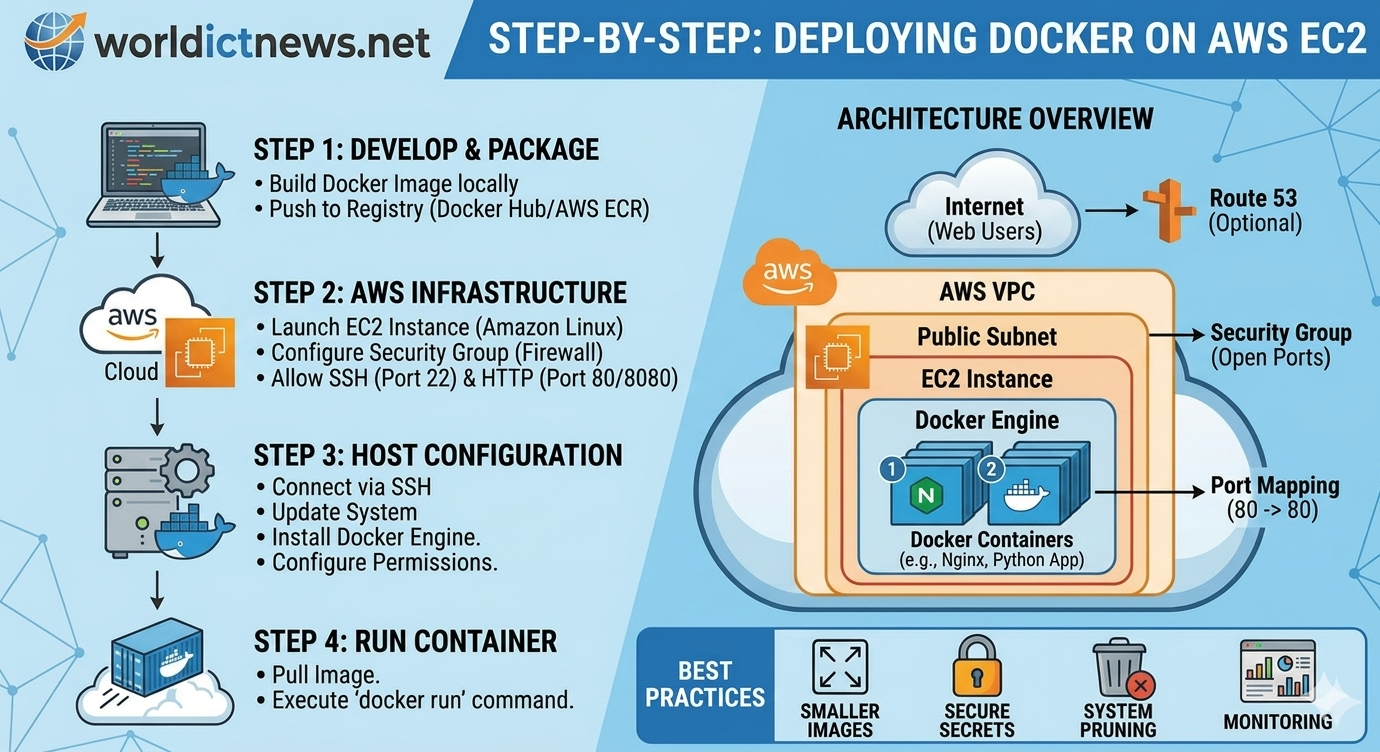
Deploying a containerized application onto a raw cloud server requires connecting several infrastructure components together securely. The workflow follows a clean, sequential pipeline:
[ Developer PC ] ──(Push Image)──> [ Docker Hub / ECR ]
│
(Pull Image)
▼
[ AWS Cloud ] ──> [ VPC / Security Group ] ──> [ EC2 Instance (Docker Run) ]
To achieve this setup successfully, developers must navigate three key deployment phases:
Provisioning the Infrastructure: Setting up an AWS virtual server with correct security access.
Configuring the Environment: Installing the Docker runtime engine directly onto the Linux host.
Deploying the App: Pulling the pre-packaged container image from a registry and running it.
2. Phase 1: Launching and Securing Your EC2 Instance
The foundation of your deployment is the EC2 instance itself. Think of this as renting a blank virtual computer inside Amazon’s secure data centers.
Selecting the Right AMI
Log into your AWS Management Console and navigate to the EC2 Dashboard. Click "Launch Instance". When choosing your Amazon Machine Image (AMI), select Amazon Linux 2023 (or Ubuntu 24.04 LTS). These operating systems are lightweight, highly secure, and optimized to run container workloads efficiently. For basic applications, choosing a t3.micro or t2.micro instance type falls within the AWS Free Tier, providing a risk-free testing ground.
Configuring the Security Group (Firewall)
A critical pitfall for beginners is misconfiguring network access. A Security Group acts as a virtual firewall controlling inbound and outbound traffic. To configure this properly, add two essential Inbound Rules:
SSH (Port 22): Restrict the source to "My IP" so only your computer can log into the command line of the server.
HTTP (Port 80 / Port 8080): Set the source to "Anywhere (0.0.0.0/0)" so public users can access your web application once it goes live.
Download your private key pair file (.pem or .ppk) securely to your machine; you will need this file to authenticate your connection to the server.
3. Phase 2: Preparing the Host System for Docker
Once your instance is up and running, you must connect to it via SSH and install the Docker engine. Open your local terminal (or Git Bash on Windows) and run the following command to log into your cloud server:
bash
ssh -i "your-key-pair.pem" ec2-user@your-ec2-public-ip
Use code with caution.
Installing the Docker Engine
Once inside the Amazon Linux environment, update the system packages and install Docker using the native package manager:
bash
# Update the system repository
sudo dnf update -y
# Install the latest Docker engine package
sudo dnf install docker -y
# Start the background Docker service
sudo systemctl start docker
# Enable Docker to automatically turn on whenever the server reboots
sudo systemctl enable docker
Use code with caution.
Optimizing User Permissions
By default, the system requires administrative privileges (sudo) for every single Docker command. To prevent typos and enforce security best practices, add your default system user to the docker group:
bash
sudo usermod -aG docker ec2-user
Use code with caution.
Note: For these permission changes to take effect, close your terminal connection by typing exit, and then log back into the server using the SSH command provided above. Validate that the engine is running properly by typing docker info.
4. Phase 3: Launching Your Containerized Workload
With Docker successfully running on your cloud server, you are fully prepared to launch your container. For this standard configuration guide, we will pull and run a production-ready Nginx web server container directly from Docker Hub.
Execute the following command to deploy your containerized app:
bash
docker run -d -p 80:80 --name my-web-app --restart always nginx
Use code with caution.
Dissecting the Deployment Command
Understanding exactly what happens behind the scenes of this command is vital for any cloud engineer:
Parameter | Function | Operational Impact |
|---|---|---|
| Detached Mode | Runs the container quietly in the background, keeping your terminal open. |
| Port Mapping | Maps traffic arriving at Port 80 of the EC2 instance directly into Port 80 inside the container. |
| Custom Labeling | Assigns a readable name to the container for simple logging and management. |
| Resiliency Policy | Instructs Docker to automatically restart the container if it crashes or if the server reboots. |
To verify that your deployment is completely healthy, run docker ps. Open any web browser, paste your EC2 instance's Public IPv4 Address into the address bar, and hit enter. You will instantly be greeted by the default Nginx welcome page, proving your container is live to the world.
5. Enterprise Best Practices: Security and Maintenance
Running Docker on raw EC2 instances demands a proactive approach to system security. To ensure your production environments remain resilient against malicious attacks, incorporate these DevOps protocols:
Implement Multi-Stage Builds
Keep your production Docker images as small as possible. Use multi-stage builds in your Dockerfile to compile your code in a temporary container, transferring only the finished binary or compiled frontend files into the final production image. This radically slashes your attack surface by stripping away unnecessary compilers and system tools.
Never Bake Secrets Into Images
Hardcoding API keys, database passwords, or AWS credentials directly into a Dockerfile or source code is an immense security vulnerability. Instead, leverage runtime environment variables or integrate your instances with AWS Systems Manager (SSM) Parameter Store. Pass these variables securely at runtime using the -e flag:
bash
docker run -d -p 80:80 -e DB_PASSWORD=secure_token my-custom-app
Use code with caution.
Regular Pruning and Resource Management
Over time, continuous deployment cycles leave behind unused container layers, stopped containers, and dangling images that silently eat up your instance’s limited storage disk space. Set up a cron job or regularly execute the clean-up command to reclaim valuable space:
bash
docker system prune -af --volumes
Use code with caution.
Conclusion: The Stepping Stone to Cloud Architecture
Deploying Docker containers directly on AWS EC2 is an essential foundational skill for any modern web developer or system administrator. It strips away the complex abstractions of advanced container orchestrators, giving you clear insight into how cloud networks, virtual firewalls, operating system daemons, and isolated application processes interact.
Once you feel fully comfortable managing individual container deployments manually on EC2, you can easily automate this entire process using a CI/CD pipeline, or smoothly transition your workloads onto managed services like AWS ECS and Fargate for enterprise-grade scalability.
Did you find this ICT insight helpful?