HTML Elements: Meaning, Anatomy, and Functional Roles
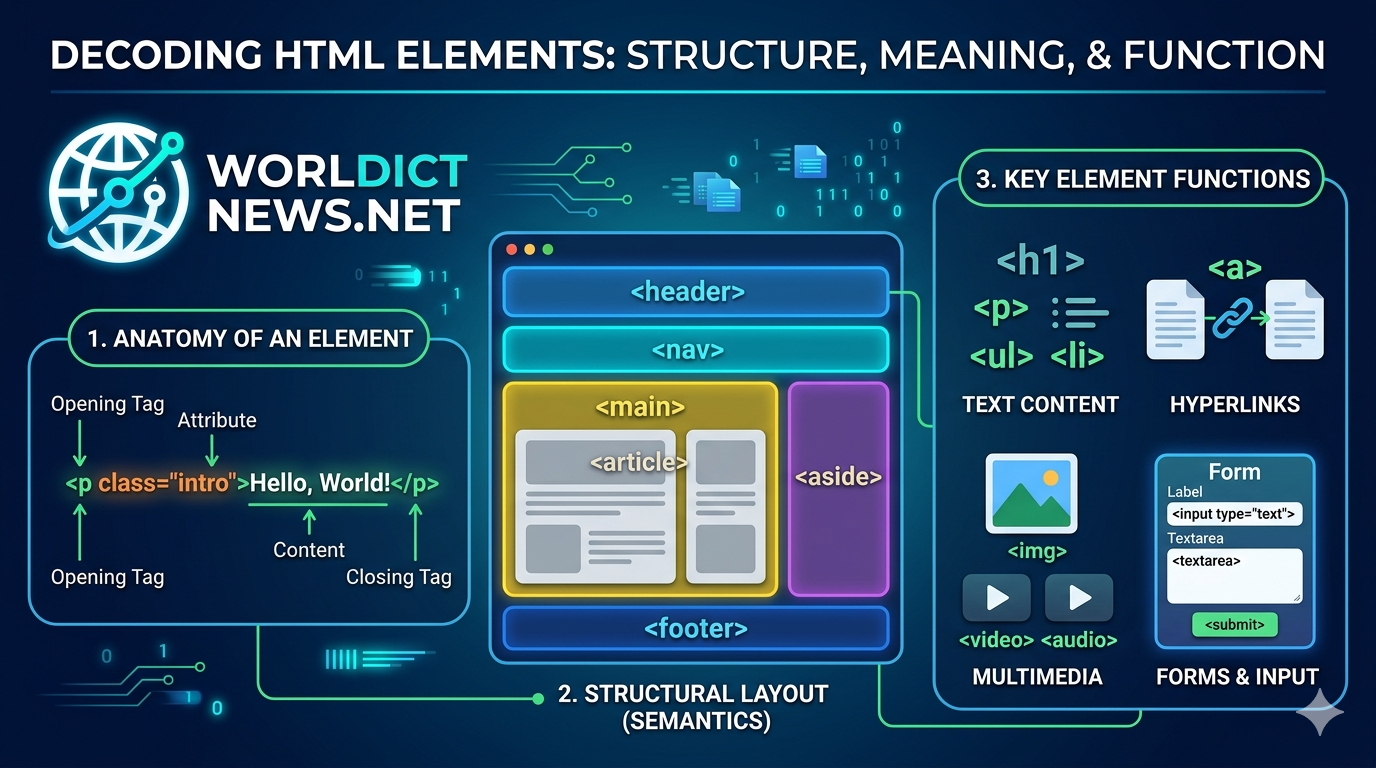
Decoding HTML Elements: Meaning, Anatomy, and Functional Roles.
HyperText Markup Language (HTML) is the skeleton of every website on the internet. Without it, web browsers would not know how to display text, render images, or navigate between pages.
To build accessible, SEO-friendly, and modern websites, you must understand what HTML elements mean and how they function. This comprehensive guide breaks down the core structural units of the web, moving from basic anatomy to practical application.
1. Anatomy of an HTML Element
Many people use the terms "HTML tags" and "HTML elements" interchangeably, but they are technically different. An element is the complete bundle that includes the opening tag, any attributes, the content, and the closing tag.
html
<p class="intro-text">Hello, World!</p>
Use code with caution.
Breaking It Down
Opening Tag (
<p>): Tells the browser where the element begins and what type of content to expect (in this case, a paragraph).Attribute (
class="intro-text"): Provides extra information or properties about the element. This is used by CSS for styling and JavaScript for functionality.Content (
Hello, World!): The actual data (text, image, or other elements) displayed on the screen.Closing Tag (
</p>): Tells the browser where the element ends. It includes a forward slash (/).
Empty (Void) Elements
Not all HTML elements need a closing tag or content. These are called void elements. They only contain attributes and self-contain their functionality.
<img>: Embeds an image.<br>: Forces a line break.<input>: Creates a data entry field.
2. Structural & Metadata Elements
Every valid HTML document requires a specific foundational structure. These elements do not always show up as visible content, but they give the browser instructions on how to read the page.
The Document Wrapper
<!DOCTYPE html>: This is a mandatory declaration at the start of the file. It tells the browser to parse the page using the latest HTML5 standard.<html>: The root element. Every single HTML element must live inside this container. It usually carries thelangattribute (e.g.,<html lang="en">) to help screen readers identify the page language.
The head vs. body Split
An HTML document is split into two main functional zones:
Element | Meaning | Function |
|---|---|---|
| Document Metadata | Contains hidden machine-readable information like character encoding, search engine keywords, stylesheets, and the page title. |
| Visible Content | Contains everything the user actually sees and interacts with on the web page (text, images, links, videos). |
Crucial Head Elements
<title>: Sets the name of the page shown on the browser tab and in search engine results.<meta>: Configures technical details. For example,<meta charset="UTF-8">ensures international text characters display correctly, while<meta name="viewport" content="width=device-width, initial-scale=1.0">makes the page mobile-responsive.
3. Structural and Semantic Layout Elements
Modern HTML relies heavily on semantic elements. A semantic element clearly describes its meaning to both the browser and the developer. Instead of making an entire webpage out of generic, meaningless <div> blocks, semantic elements create a clear digital outline.
+-------------------------------------------------------+
| <header> |
| +---------------------------------------------+ |
| | <nav> | |
| +---------------------------------------------+ |
+-------------------------------------------------------+
| <main> |
| +-----------------------+ +-------------------+ |
| | <article> | | <aside> | |
| | | | | |
| | +-----------------+ | | | |
| | | <section> | | | | |
| | +-----------------+ | | | |
| +-----------------------+ +-------------------+ |
+-------------------------------------------------------+
| <footer> |
+-------------------------------------------------------+
<header>
Meaning: The introductory section or container of a page or component.
Function: Houses logos, site names, search bars, or author information.
<nav>
Meaning: Short for navigation.
Function: Wraps groups of primary links that allow users to click around the website.
<main>
Meaning: The dominant, central topic area of the page.
Function: Encloses content unique to that specific page. It must not contain content repeated across pages, like sidebars or footers. There should only be one visible
<main>element per document.
<section>
Meaning: A standalone thematic grouping of content.
Function: Breaks up a long page into chapters or distinct areas (e.g., "Features", "Pricing", "Contact Us").
<article>
Meaning: An independent, self-contained piece of content.
Function: Encapsulates content that could be copied, pasted, and reused on a completely different website while still making perfect sense (e.g., blog posts, product cards, forum entries).
<aside>
Meaning: Secondary or tangentially related content.
Function: Displays sidebars, callout boxes, or advertising panels next to the primary text.
<footer>
Meaning: The closing section at the bottom of a page or layout block.
Function: Houses copyright notices, privacy policy links, sitemaps, and social media handles.
4. Text Content and Typography Elements
Text elements structure written content so browsers can apply baseline styles and search engines can index headings appropriately.
Headings (<h1> to <h6>)
Meaning: Hierarchy indicators for titles and subtitles.
Function: Organize information into a clear visual rank.
<h1>represents the single most important topic on the page, down to<h6>for deep sub-sub-sections. Never skip heading levels (e.g., jumping from<h1>to<h3>), as it confuses screen readers.
Text Formatting Group
<p>: The paragraph element. Automatically creates vertical spacing above and below text blocks to optimize reading comfort.<strong>: Indicates that the wrapped text has urgent importance or seriousness. Browsers render this as bold text.<em>: Adds emphasis to a word, shifting the meaning of a sentence. Browsers render this as italics.<blockquote>: Represents a block of text quoted from another source. It naturally indents the content to visually separate it from the main narrative.
Lists
Lists organize data points cleanly:
<ul>: Unordered list. Creates a bulleted list format.<ol>: Ordered list. Creates a numbered list format ().
<li>: List item. The specific child container holding the actual text inside a<ul>or<ol>.
5. Inline Text Semantics and Hyperlinks
Inline elements sit inside block-level elements without forcing a new line on the page.
The Hyperlink Element (<a>)
The anchor tag (<a>) connects the internet together. It creates a clickable link to another location.
html
<a href="https://example.com" target="_blank" rel="noopener">Visit Example</a>
Use code with caution.
hrefAttribute: Specifies the destination URL.target="_blank"Attribute: Tells the browser to open the link in a completely new tab.rel="noopener"Attribute: A security necessity when opening new tabs. It prevents the newly opened page from hijacking your original page using malicious JavaScript code.
Utility Inline Selectors
<span>: A generic inline container with no inherent meaning. It is used to target a specific word or phrase for styling via CSS or manipulation with JavaScript.<code>: Formats text using a monospaced font family to display computer programming code strings smoothly.
6. Multimedia and Embedded Content
HTML5 introduced native tags to handle rich media natively without requiring outdated, insecure plugins.
<img> (Images)
html
<img src="assets/banner.jpg" alt="A laptop on a clean wooden desk" loading="lazy">
Use code with caution.
src: Points to the path where the image file is saved.alt: Alternate text. This is a critical accessibility feature. If the image fails to load, or if a visually impaired user relies on a screen reader, this text explains what the image shows.loading="lazy": An optimization property that delays loading the image until the user scrolls near it, improving initial site load speeds.
<video> and <audio> (Rich Media)
These elements imbed video clips or sound files directly onto a page. By including the controls attribute, the browser automatically builds play, pause, and volume buttons for the end user.
html
<video src="clip.mp4" controls width="640">
Your browser does not support video playback.
</video>
Use code with caution.
7. Forms and User Inputs
Forms allow web applications to collect information from users, handling tasks like logins, search bars, and checkouts.
<form>: The outer container that captures and coordinates the collected inputs, defining where to send the data when submitted.<label>: Links text descriptions to input fields. Clicking a label focuses the user's cursor into the matching input box, which dramatically improves accessibility.<input>: The primary engine for user entry. The data structure changes completely depending on itstypeattribute:type="text": Standard short text entry box.type="email": Validates that the input contains an@sign.type="password": Obscures input characters automatically.type="checkbox": Allows selecting multiple options.
<textarea>: An expandable multi-line text input field used for comments, messages, or reviews.<button>: A clickable element used to trigger actions or submit data to a server.
8. Best Practices for Modern HTML
To maximize the impact of your markup, follow these industry-standard rules:
Always Prioritize Semantics: Do not use a
<div>if a<button>,<p>, or<main>exists for your use case. Semantics dramatically improve Search Engine Optimization (SEO) and help screen readers navigate your content.Maintain Attribute Cleanliness: Keep attributes organized uniformly. Always place critical structural attributes like
id,class,src, orhreffirst to optimize human readability.Validate Your Closing Tags: Forgetting to close tags can trigger rendering errors, breaking your layout downstream. Use modern code editors with built-in auto-close extensions to prevent syntax bugs.
Conclusion
HTML elements are much more than simple layout brackets. They define the structural logic, structural meaning, and functional interactions of everything we experience online. By matching the right semantic element to its correct use case, you build web experiences that are structurally stable, accessible to all users, and highly optimized for modern search engines.
Did you find this ICT insight helpful?