A Comprehensive Guide to RAM Volatility Capturing
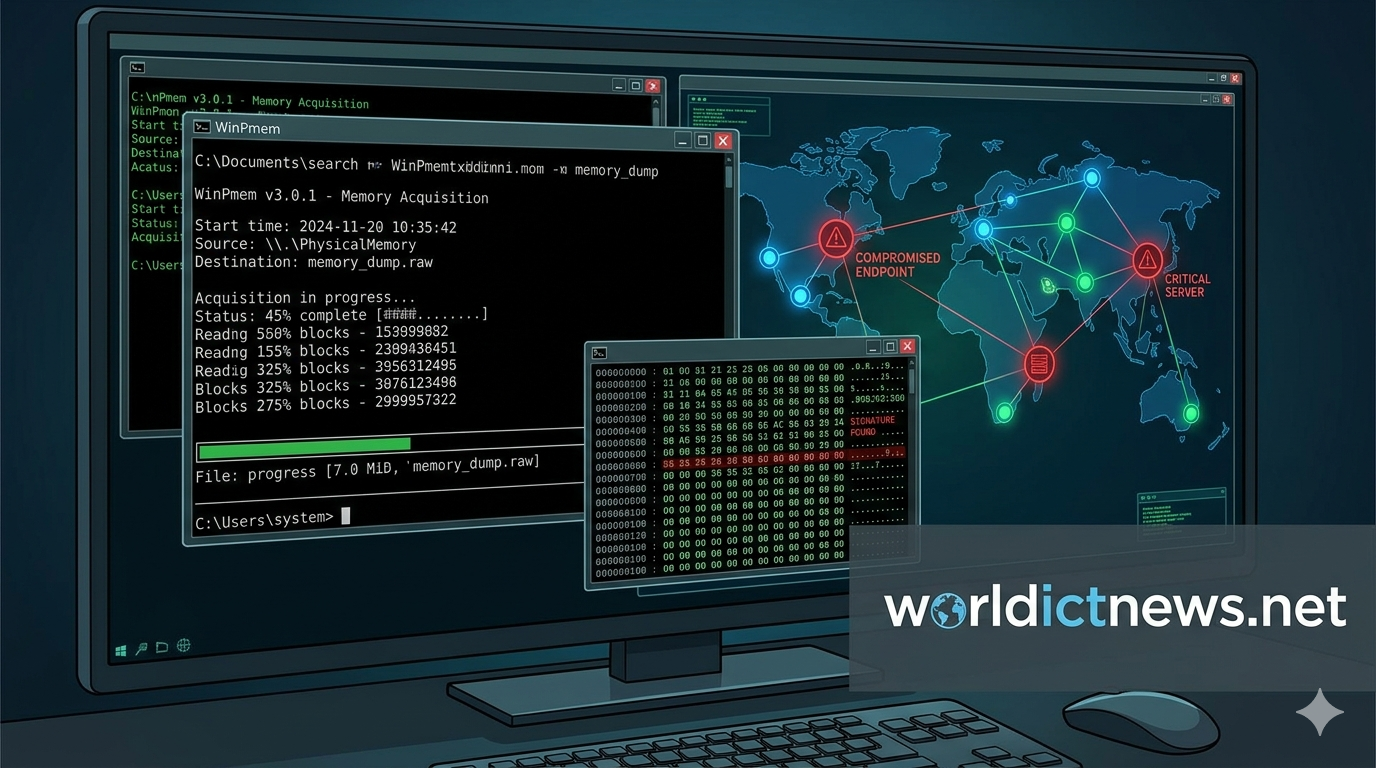
Digital Forensics: The Comprehensive Guide to RAM Volatility Capturing.
In digital forensics and incident response (DFIR), volatile memory (RAM) is a goldmine of ephemeral evidence. When a system is compromised, malicious processes, network connections, and unencrypted credentials exist in the system's memory. If a responder pulls the power plug prematurely, this critical data is lost forever.
This guide provides an exhaustive, practical walkthrough for capturing RAM volatility across both Windows and Linux platforms using industry-standard tools.
Why RAM Capture is Critical in Forensics
According to the Order of Volatility (defined in RFC 3227), volatile data must be collected before less volatile data, such as hard drives or archival backups. RAM contains real-time operational data that never touches the storage disk, making it indispensable for modern investigations.
The Evidentiary Value of RAM
Active Network Connections: Open ports, listening sockets, and remote IP addresses communicating with Command and Control (C2) servers.
Running Processes: Malicious binaries executing out of temporary directories, hidden processes, or injected code blocks.
Decrypted Credentials: Plaintext passwords, SSH keys, bitlocker recovery keys, and active user session tokens.
Uncompiled Malware Artifacts: Execution strings, environment variables, and fileless malware payloads residing strictly in memory.
Pre-Capture Methodology and Integrity Protocol
Memory acquisition alters the state of the target machine. Launching an execution tool introduces new processes, allocates memory addresses, and modifies registry keys or kernel structures. To preserve forensic integrity, investigators must minimize this footprint.
Core Protocol for Memory Preservation
Do Not Interact Unnecessarily: Do not open web browsers, file explorers, or native configuration menus on the target machine.
Use External Storage: Always execute your collection tools from a trusted, pre-configured external USB drive.
Output Globally: Save the generated memory image directly onto the external USB drive, never onto the local system drive.
Establish Chain of Custody: Document the exact system time, the user executing the tool, tool versioning, and immediate cryptographic hashes of the output file.
Windows RAM Capture: Practical Procedures
Windows architecture segregates system execution between User Mode and Kernel Mode. To bypass OS protections and extract a raw physical memory dump, tools must load a signed kernel driver.
Method 1: Using WinPmem (Open Source CLI)
WinPmem is a highly reliable, open-source command-line utility that utilizes a signed driver to read the physical memory device mapping (\Device\PhysicalMemory).
Step-by-Step Execution:
Prepare the Media: Format an external USB drive to NTFS or exFAT to support file sizes larger than 4GB. Download the latest release of WinPmem.
Mount and Launch: Insert the USB drive into the target Windows machine. Open an elevated Command Prompt by searching for
cmd, right-clicking, and selecting Run as Administrator.Navigate to the Tool: Change directories to your USB drive letter (e.g.,
E:).cmd
E:
cd winpmem
Use code with caution.
Execute Capture: Run the acquisition command. Use descriptive naming incorporating the host ID and date.
cmd
winpmem_3.3.rc3.exe --output E:\ Forensic_Captures\ Win10_Host01_20260602.raw --format raw
Use code with caution.
Verify Progress: The tool will load its kernel driver, map physical memory blocks, and display a progress percentage tracker.
Method 2: Using FTK Imager Lite (GUI Alternative)
When command-line execution is unavailable or restricted by administrative profiles, FTK Imager Lite provides a reliable graphical alternative.
Step-by-Step Execution:
Launch from USB: Run
FTK Imager.exedirectly from your external forensic media.Access Memory Capture: Navigate to the top menu bar and click on File > Capture Memory...
Configure Parameters:
Destination Path: Browse and select your external storage folder.
Destination Filename: Name the output file explicitly (e.g.,
memdump.mem).Include Pagefile: Optional. Check this box if you require the virtual memory swap space (
pagefile.sys), though it will drastically increase capture time and size.Create AD1 File: Leave this unchecked to maintain a raw binary format.
Initialize: Click Capture Memory. A progress window will track block reading until completion.
+-------------------------------------------------------------+
| FTK Imager Memory Capture |
+-------------------------------------------------------------+
| Destination Path: [ E:\Forensic_Captures ] |
| Destination Filename: [ Win10_Host01_RAM.mem ] |
| |
| [X] Include pagefile |
| [ ] Create AD1 file |
| |
| Status: Capturing Physical Memory... |
| [====>-----------] 78% |
+-------------------------------------------------------------+
Linux RAM Capture: Practical Procedures
Unlike modern Windows deployment, Linux kernels are highly customized by distribution, version, and architecture. Capturing memory on Linux requires interacting with virtual file devices or compiling kernel modules natively.
Method 1: Using LiME (Linux Memory Extractor)
LiME is the gold standard for Linux volatile memory acquisition. It compiles a loadable kernel module (LKM) directly against the running kernel to guarantee a full, non-corrupted acquisition.
Step-by-Step Execution:
If the target machine does not have build tools installed, you must compile the module on a compilation machine running the exact same kernel version.
Install Dependencies: Install the necessary compilation tools on your build machine.
bash
sudo apt-get update && sudo apt-get install -y build-essential linux-headers - $(uname -r) git
Use code with caution.
Clone the Repository: Download the LiME source code.
bash
git clone https://github.com
cd LiME/srcUse code with caution.
Compile the Module: Run the make command to generate the kernel object file (
.ko).bash
makeUse code with caution.
This generates a file named something like
lime-6.x.x-generic.ko.Transfer and Load: Move the compiled
.kofile to your forensic USB drive. Insert it into the target system and execute the module load command (insmod), designating the output file path and format.bash
sudo insmod lime-6.x.x-generic.ko "path=/media/usb/linux_host01_ram.lime format=raw"
Use code with caution.
Unload the Module: Once the processing finishes and returns control to the shell, unload the module to clear it from the system kernel space.
bash
sudo rmmod limeUse code with caution.
Method 2: Using the /dev/fmem Device
For older legacy Linux kernels where compilation tools cannot be run, you can utilize the fmem kernel driver if it is pre-staged, allowing direct access to the /dev/fmem device layer.
Step-by-Step Execution:
Navigate to External Device: Access your toolset repository on the mounted drive.
Initialize Driver: Run the setup script to create the pseudo-device.
bash
sudo ./run.shUse code with caution.
Image with DD: Use the standard
ddimaging tool to stream the device output straight to your external disk storage block.bash
sudo dd if=/dev/fmem of=/media/usb/legacy_linux_ram.raw bs=1M status=progress
Use code with caution.
Forensic Validation and Post-Capture Integrity
A memory capture is legally useless if its integrity cannot be verified in a court of law. Cryptographic hashing ensures that the file has not been altered since the moment of collection.
Hashing the Output File
Immediately upon capture completion, run a cryptographic hashing algorithm over the file.
On Windows (PowerShell):
powershell
Get-FileHash -Path "E:\ Forensic_Captures\ Win10_Host01_20260602.raw" -Algorithm SHA256
Use code with caution.
On Linux (Terminal):
bash
sha256sum /media/usb/ linux_host01_ram.lime
Use code with caution.
Log the resulting hexadecimal string directly into your physical case notes file. When loading this image into analytical frameworks later, the hashes must match perfectly.
Technical Summary of Forensic Software
Tool Name | OS Supported | Licence Type | Output Format | Memory Footprint |
|---|---|---|---|---|
WinPmem | Windows | Open Source | Raw / Elf | Very Low |
FTK Imager | Windows | Proprietary (Free) | Raw / Custom | Moderate |
LiME | Linux | Open Source | Raw / Padding | Minimal |
fmem | Linux (Legacy) | Open Source | Raw | Low |
Troubleshooting Common Capture Issues
During live incident response, things rarely go perfectly. Below are common real-world edge cases and how to address them:
Insufficient Storage Space Errors: RAM captures equal the exact size of the physical RAM installed. If the target machine has 64GB of RAM, your external USB drive must have at least 64GB of free unallocated space. Ensure your target drive filesystem is not formatted to FAT32, which restricts single files to a maximum of 4GB.
Driver Loading Blocked (Windows): Modern Windows installations utilize Device Guard or Kernel-mode Code Signing (KMCS) protections. If WinPmem fails to load, ensure you are running an explicitly signed version of the executable, or pivot to a commercially validated option like FTK Imager.
Kernel Panic Errors (Linux): Compiling LiME against an incorrect or mismatched kernel header will cause an instant kernel panic, crashing the entire server. Always execute
uname -ron the target machine first to verify your builds match the target kernel version down to the exact minor release number.
Next Steps: Preparing for Volatility Analysis
Capturing the image is only half the battle. Once your raw memory image is cryptographically locked and safe on your forensic workstation, your next step is parsing it.
Conclusion
Acquiring a volatile memory image via WinPmem provides a critical, uncompressed raw dump, ensuring the preservation of time-sensitive data such as running processes, active network connections, and potential malware. By storing the memory capture on external media, this process maintains forensic integrity and prepares the evidence for in-depth analysis using frameworks like Volatility.
Did you find this ICT insight helpful?