Digital Forensics in Autopsy Using Memory Artifacts
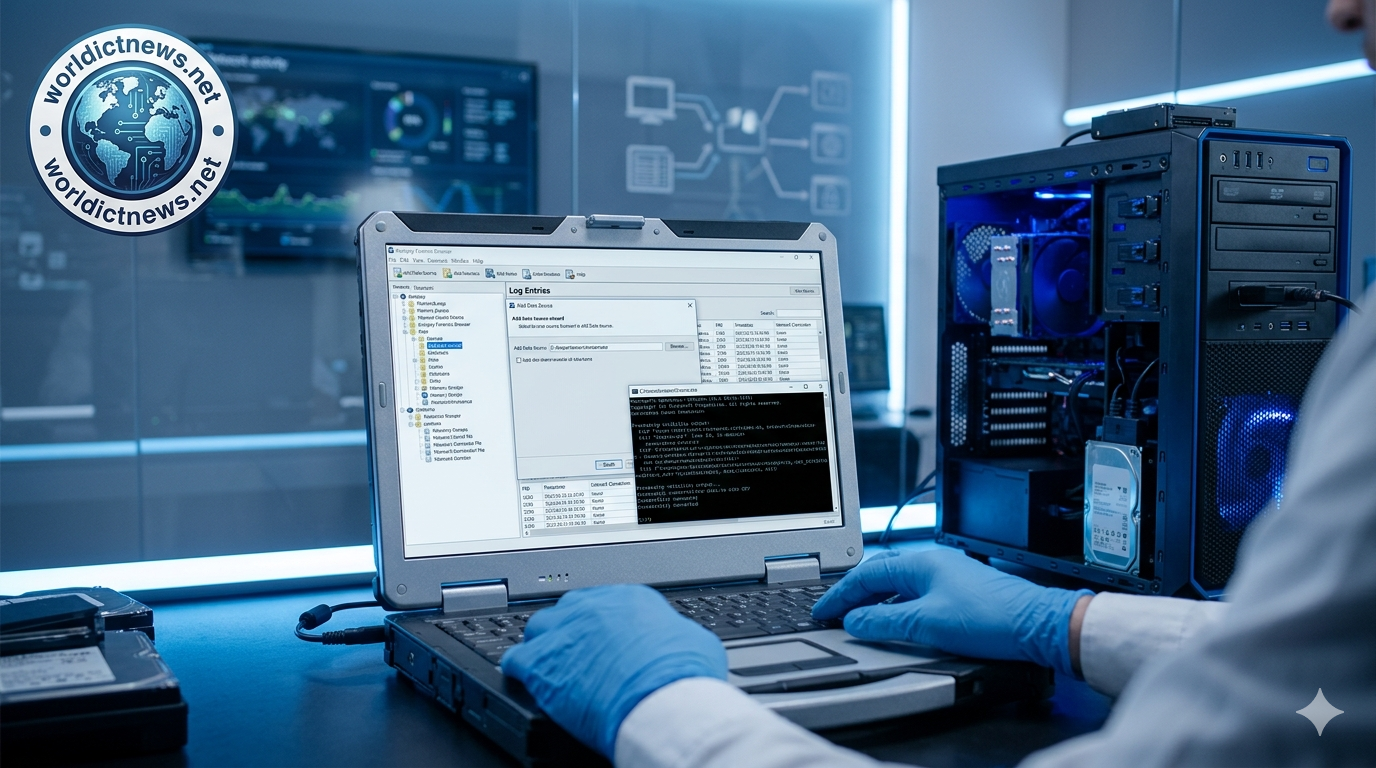
Comprehensive Guide: Conducting Digital Forensics in Autopsy Using Memory Artifacts Extracted via Volatility 3 and Python.
Introduction
When an enterprise endpoint is compromised, volatile memory (RAM) holds the most critical evidence of the intrusion. Threat actors increasingly deploy fileless malware, reflective DLL injections, and living-off-the-land binaries that exist purely within volatile storage loops, leaving no footprints on traditional disk drives.
To analyze these complex attacks, forensic investigators use tools like Winpmem to extract raw memory dumps. However, a raw mem_capture.raw image cannot be directly ingested into structural database tools. Investigators must first bridge the gap between raw volatile dumps and structured timelines.
This technical guide outlines the procedures for conducting a digital forensic investigation within Autopsy using structured data extracted from a Winpmem file. We will use Volatility 3 and custom Python automation scripts to automate artifact parsing, format raw outputs, and build a unified, time-correlated case file.
1. Architectural Overview of the Forensic Pipeline
The data analysis process follows a strict flow to preserve evidence integrity and ensure full forensic reproducibility:
[Raw RAM (.raw)] ---> [Volatility 3 Engine] ---> [Python Extraction Script]
|
v
[Unified Forensic Timeline] <--- [Autopsy Ingestion] <--- [Structured CSV Output]
Acquisition Verification: Validate the raw RAM image file captured via Winpmem.
Volatile Processing: Run Volatility 3 to extract raw text tables of processes, network sockets, and registry configurations.
Python Automation: Execute a custom Python script to clean, parse, and reformat Volatility outputs into structured, Autopsy-compatible CSV datasets.
Autopsy Integration: Ingest the structured files into Autopsy to build a comprehensive case timeline and correlate evidence.
2. Setting Up the Automation Environment
To follow this guide, ensure your forensic workstation has the following prerequisites configured:
Volatility 3: Installed and accessible via your command-line interface (
vol.pyorvolshell).Python 3.x: Installed with standard library access.
Autopsy Forensic Browser: Installed (Version 4.19.3 or later recommended).
Create a clean directory structure on your dedicated forensic workstation storage drive:
bash
mkdir -p /forensics/cases/incident_001/raw_data
mkdir -p /forensics/cases/incident_001/vol_outputs
mkdir -p /forensics/cases/incident_001/autopsy_csv
Use code with caution.
Place your raw memory capture (mem_capture.raw) into the /raw_data/ directory.
3. Extracting Volatile Memory Layers via Volatility 3
Before writing our automation script, we need to extract the raw artifact layers from the RAM dump. We will pull three critical data points: process structures, network connections, and the Windows system registry.
Run the following commands in your terminal to generate the raw text data:
bash
# Extract active and hidden processes
python3 vol.py -f /forensics/cases/incident_001/raw_data/mem_capture.raw windows.pslist > /forensics/cases/incident_001/vol_outputs/pslist.txt
# Extract active network connections and listening ports
python3 vol.py -f /forensics/cases/incident_001/raw_data/mem_capture.raw windows.netscan > /forensics/cases/incident_001/vol_outputs/netscan.txt
Use code with caution.
4. Automating Ingestion Setup via Python
Volatility 3 outputs data in human-readable text tables. To import this data into Autopsy as a logical data source, we need to reformat it into standard, comma-separated values (CSV) with explicit chronological headers.
The following Python script automates this process. It reads the raw text outputs from Volatility, sanitizes white spaces, maps the columns, and writes clean CSV files that Autopsy can instantly index.
The Parsing Script (vol_to_autopsy.py)
Save the code block below as vol_to_autopsy.py on your workstation:
python
#!/usr/bin/env python3
"""
Forensic Automation Script: Volatility 3 Text Output to Autopsy-Compatible CSV Converter.
Author: Digital Forensics Analyst
"""
import os
import re
import csv
def parse_pslist(input_path, output_path):
"""Parses windows.pslist output into a structured forensic CSV."""
if not os.path.exists(input_path):
print(f"[-] Source file not found: {input_path}")
return
print(f"[+] Parsing Process List from: {input_path}")
with open(input_path, 'r', encoding='utf-8') as infile, \
open(output_path, 'w', newline='', encoding='utf-8') as outfile:
writer = csv.writer(outfile)
# Write clean headers optimized for Autopsy logical file viewing
writer.writerow(["PID", "PPID", "ImageFileName", "Offset", "Threads", "Handles", "SessionId", "Wow64", "CreateTime", "ExitTime"])
for line in infile:
line = line.strip()
# Skip Volatility header artifacts and system markers
if not line or line.startswith("PID") or line.startswith("-") or line.startswith("Progress"):
continue
# Split lines by variable whitespace boundaries
parts = re.split(r'\s{2,}', line)
# Ensure the row matches expected Volatility column structures
if len(parts) >= 8:
pid = parts[0]
ppid = parts[1]
image_name = parts[2]
offset = parts[3]
threads = parts[4]
handles = parts[5]
session_id = parts[6]
wow64 = parts[7]
# Handle timestamps if process is active or terminated
create_time = parts[8] if len(parts) > 8 else "N/A"
exit_time = parts[9] if len(parts) > 9 else "Active"
writer.writerow([pid, ppid, image_name, offset, threads, handles, session_id, wow64, create_time, exit_time])
def parse_netscan(input_path, output_path):
"""Parses windows.netscan output into a structured forensic CSV."""
if not os.path.exists(input_path):
print(f"[-] Source file not found: {input_path}")
return
print(f"[+] Parsing Network Scan Matrix from: {input_path}")
with open(input_path, 'r', encoding='utf-8') as infile, \
open(output_path, 'w', newline='', encoding='utf-8') as outfile:
writer = csv.writer(outfile)
writer.writerow(["Offset", "Protocol", "LocalAddress", "LocalPort", "ForeignAddress", "ForeignPort", "State", "PID", "Owner", "CreatedTime"])
for line in infile:
line = line.strip()
if not line or line.startswith("Offset") or line.startswith("-") or line.startswith("Progress"):
continue
parts = re.split(r'\s+', line)
if len(parts) >= 8:
offset = parts[0]
proto = parts[1]
# Parse local and foreign socket points
local_addr_port = parts[2].rsplit(':', 1)
local_addr = local_addr_port[0]
local_port = local_addr_port[1] if len(local_addr_port) > 1 else "N/A"
foreign_addr_port = parts[3].rsplit(':', 1)
foreign_addr = foreign_addr_port[0]
foreign_port = foreign_addr_port[1] if len(foreign_addr_port) > 1 else "N/A"
state = parts[4]
pid = parts[5]
owner = parts[6]
# Reconstruct time blocks from ending segments
created_time = " ".join(parts[7:]) if len(parts) > 7 else "N/A"
writer.writerow([offset, proto, local_addr, local_port, foreign_addr, foreign_port, state, pid, owner, created_time])
if __name__ == "__main__":
# Define execution directories
BASE_DIR = "/forensics/cases/incident_001"
pslist_in = os.path.join(BASE_DIR, "vol_outputs/pslist.txt")
pslist_out = os.path.join(BASE_DIR, "autopsy_csv/parsed_processes.csv")
netscan_in = os.path.join(BASE_DIR, "vol_outputs/netscan.txt")
netscan_out = os.path.join(BASE_DIR, "autopsy_csv/parsed_network.csv")
# Run parsing scripts
parse_pslist(pslist_in, pslist_out)
parse_netscan(netscan_in, netscan_out)
print("[+] Optimization Script Execution Completed Successfully.")
Use code with caution.
Running the Script
Execute the parsing script from your terminal:
bash
chmod +x vol_to_autopsy.py
python3 vol_to_autopsy.py
Use code with caution.
This generates clean CSV files in your /autopsy_csv/ folder, making the data ready for structured analysis.
5. Step-by-Step Case Ingestion in Autopsy
Now that your data is structured, you can import it into Autopsy to build your timeline and correlate evidence.
Step 1: Initialize the Case Repository
Launch Autopsy.
Click New Case from the welcome screen.
Enter
Case_Incident_001as the Case Name.Set the Base Directory path to
/forensics/cases/incident_001/and click Next.Add your case number, investigator credentials, and initial summary notes. Click Finish to initialize the backend database.
Step 2: Import the Extracted CSV Data Sources
Rather than importing the large, unindexed raw file, we will add the structured memory datasets we created using our script.
Select Data Source Type
--> [Logical Files]
--> Add Folder: `/forensics/cases/incident_001/autopsy_csv/`
The Add Data Source wizard will automatically open. Select Logical Files as the data source type and click Next.
Click Add and select the folder path containing your processed CSV files (
/forensics/cases/incident_001/autopsy_csv/).Click Next to move to the Ingest Modules screen.
Step 3: Configure Ingest Modules for Data Processing
To extract the most insight from your structured CSV files, enable these key ingest modules:
Ingest Module | Analytical Role |
|---|---|
File Type Identifier | Validates the integrity of your CSV files and checks for spoofed extensions. |
Keyword Search | Indexes every text string, letting you search for specific IOCs (Indicators of Compromise), IPs, or malware names across all files. |
Interesting Files Finder | Flags file alerts if specific conditions are met based on pre-defined rule sets. |
Click Finish to start the ingestion process.
6. Forensic Artifact Correlation and Timeline Analysis
Once Autopsy finishes processing the data, you can use its built-in analysis tools to connect the dots across your datasets.
1. Analyzing the Unified Timeline
Click the Timeline icon in the top toolbar to view a chronological visualization of your data.
Filter your view around the exact time the security alert triggered. This lets you align the CreateTime of processes from parsed_processes.csv with network connection timestamps in parsed_network.csv. For example, you can see if a suspicious process like cmd.exe was spawned right as an inbound network connection was established on an unusual port.
2. Hunting for Memory Threats with Keyword Searches
Use the Keyword Search field in the top-right corner to hunt for specific threats:
Malicious IP Addresses: Search for external IP addresses flagged by your network monitoring logs. Autopsy will highlight every matching row within
parsed_network.csv, instantly revealing the process ID (PID) responsible for the traffic.Process Masquerading: Search for common system binaries (e.g.,
svchost.exe,lsass.exe). Look for abnormal behaviors, such as multiple instances running from incorrect parent processes or mismatched non-system PIDs.
7. Common Pitfalls and Troubleshooting
Avoid these common mistakes to keep your analysis accurate and efficient:
Mismatched Formatting Rules: Volatility plugins can occasionally change their text column layouts between software updates. If your Python script triggers an
IndexError, open the raw text file in/vol_outputs/and verify that the column layout matches the splitting rules in the regular expression parser.Corrupted Time Formatting: Autopsy reads timeline timestamps best when they are formatted in ISO 8601 (
YYYY-MM-DD HH:MM:SS). If your Volatility output uses localized or truncated timestamps, adjust the string manipulation steps in your script to standardize the time fields before importing.Mixing Case Data: The "Logical Files" data source continues to reference your output folders actively. If you run multiple memory extractions within the same folder without updating your case files, you risk cross-contaminating your evidence. Always use unique case directories for each endpoint device you analyze.
Conclusion
By combining Volatility 3, Python automation, and Autopsy, you create a highly efficient, repeatable digital forensics pipeline for memory analysis. Python handles the heavy lifting of parsing raw text into structured data, while Autopsy provides a powerful graphical suite for timeline correlation, keyword indexing, and evidence discovery.
Using this structured workflow, incident response teams can quickly turn volatile RAM captures into actionable, timeline-driven forensic evidence, ensuring thorough documentation of sophisticated cyber attacks.
Did you find this ICT insight helpful?